
Kids Tablet Parental Controls Guide (2026)
🔒 What Are Parental Controls on Kids Tablets?
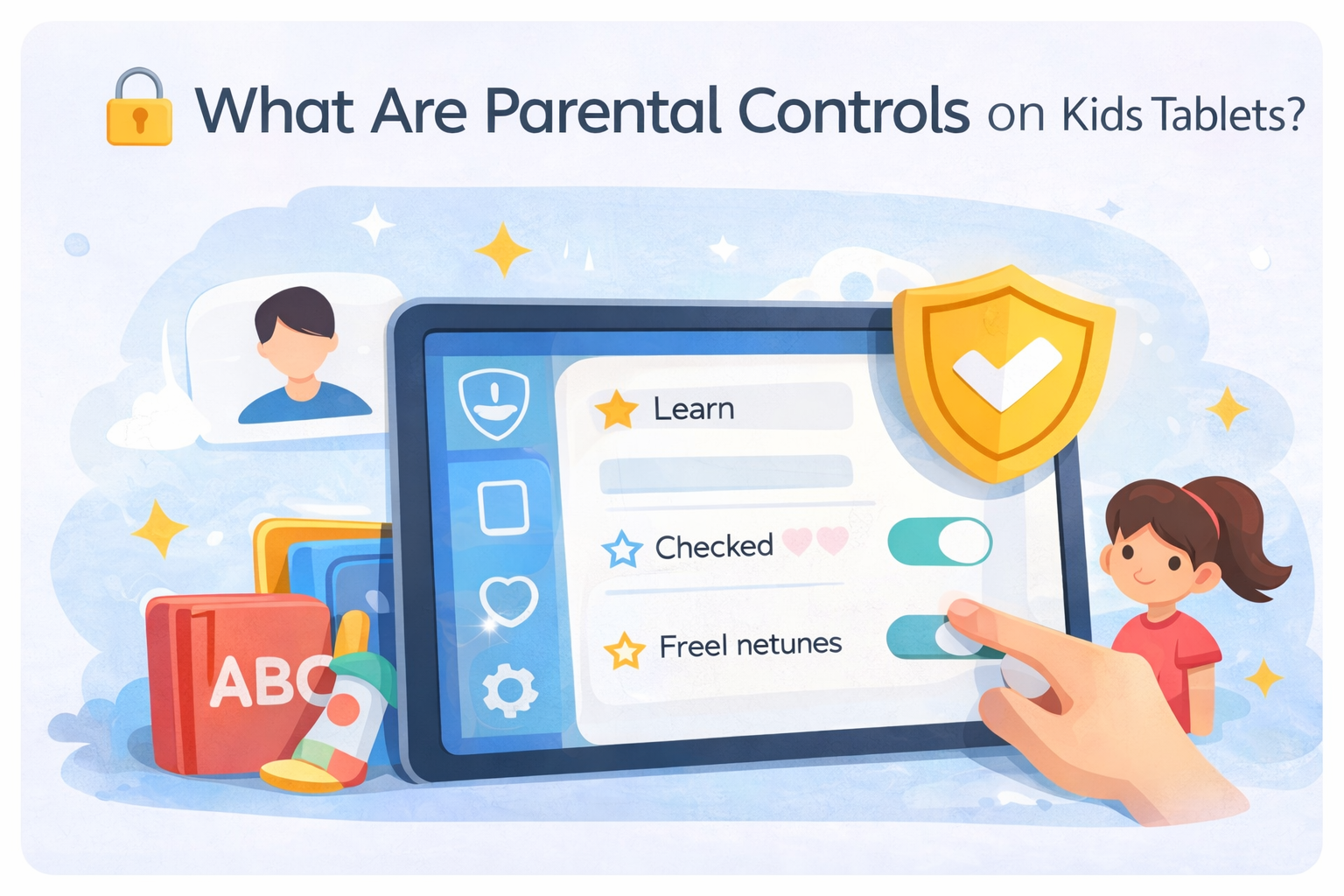
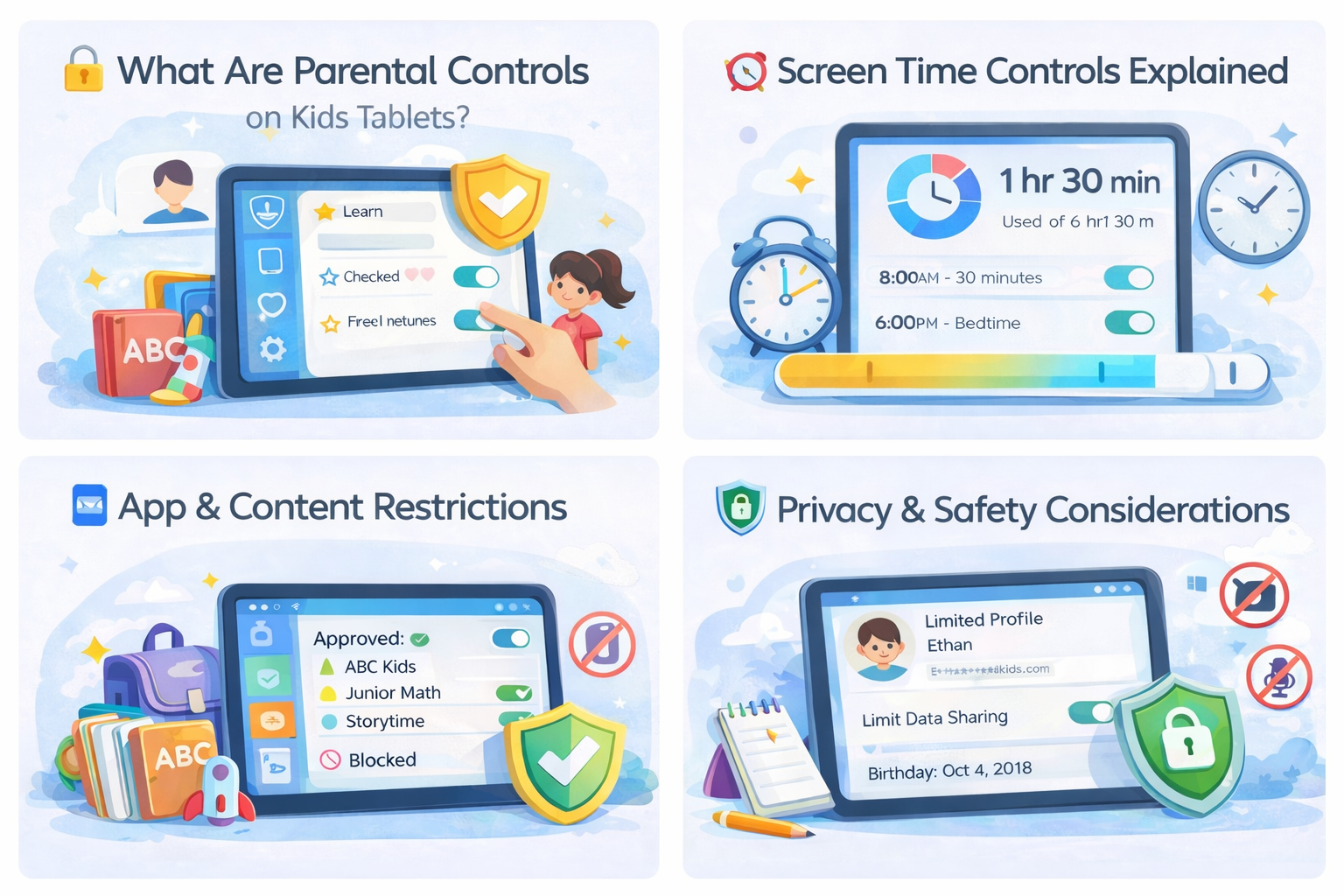
Parental controls are built-in tools that allow parents to manage screen time, app access, content filtering, and privacy settings on a child’s tablet. These controls help ensure kids use tablets safely and responsibly.
- Screen time limits and schedules
- App and game approval
- Web filtering and blocked content
- Usage reports for parents
Reduce exposure to inappropriate content
Leaving default settings unchanged
⏰ Screen Time Controls Explained
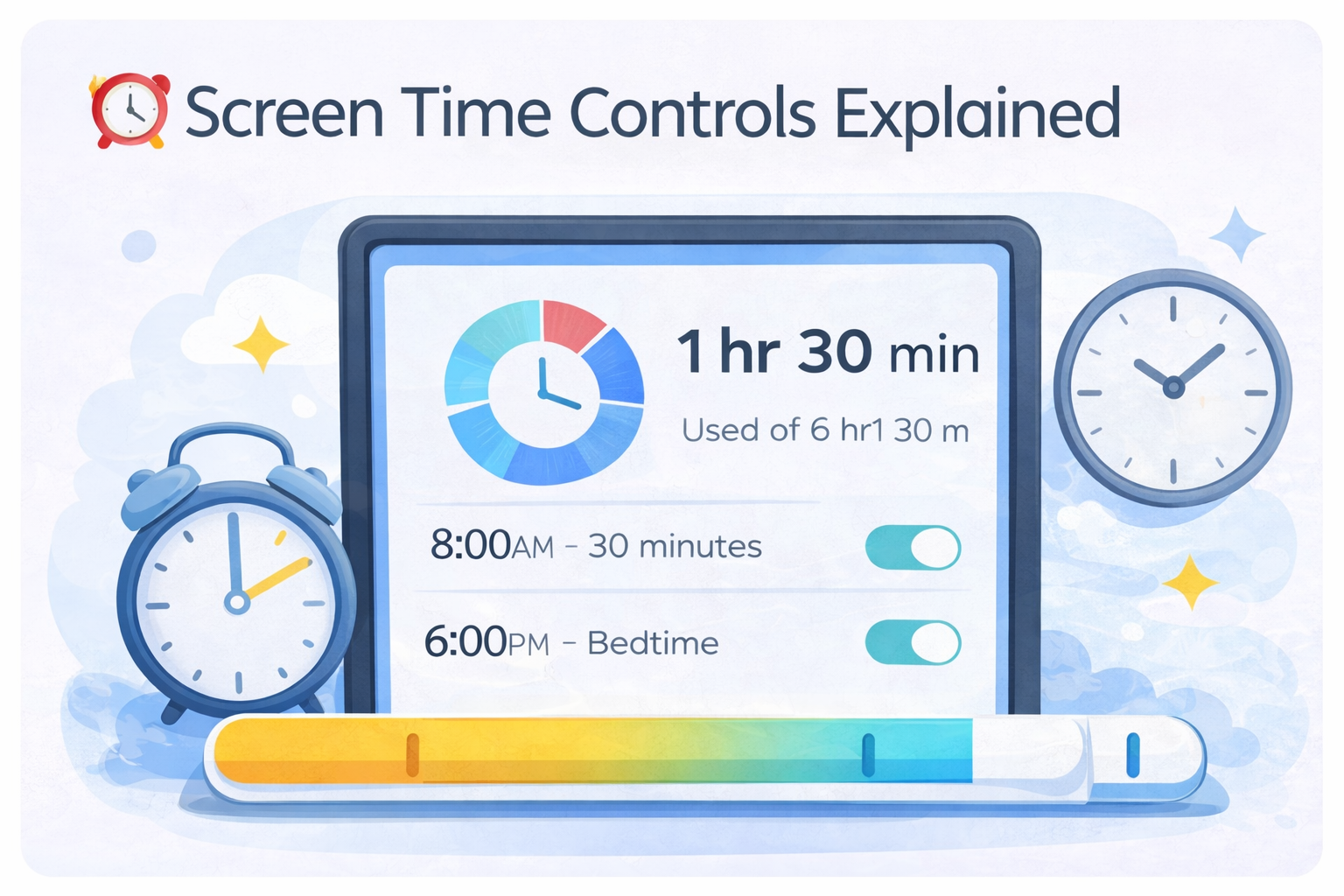
Screen time management lets parents control how long a child can use a tablet each day. Most kids tablets allow daily limits, bedtime lockouts, and school-hour restrictions.
- Daily usage limits
- Automatic bedtime lock
- School or homework mode
Set clear daily limits by age
Unlimited screen access
📱 App & Content Restrictions
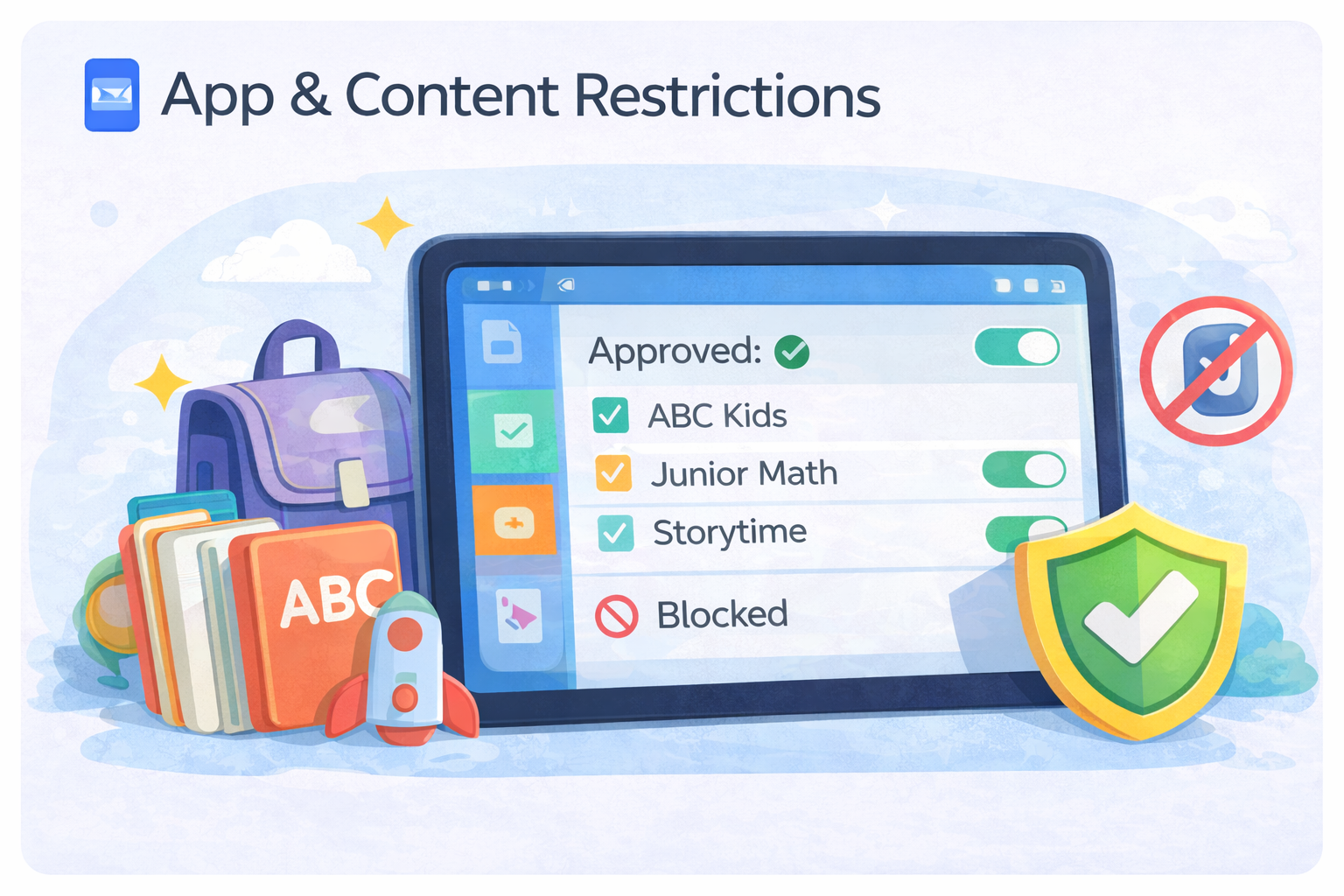
App and content controls let parents approve or block specific apps, games, videos, and websites. Some platforms offer curated libraries, while others require manual setup.
- App approval before download
- Age-based content filters
- Blocked websites and searches
Curated content libraries
Open app stores without filters
🛡️ Privacy & Safety Considerations
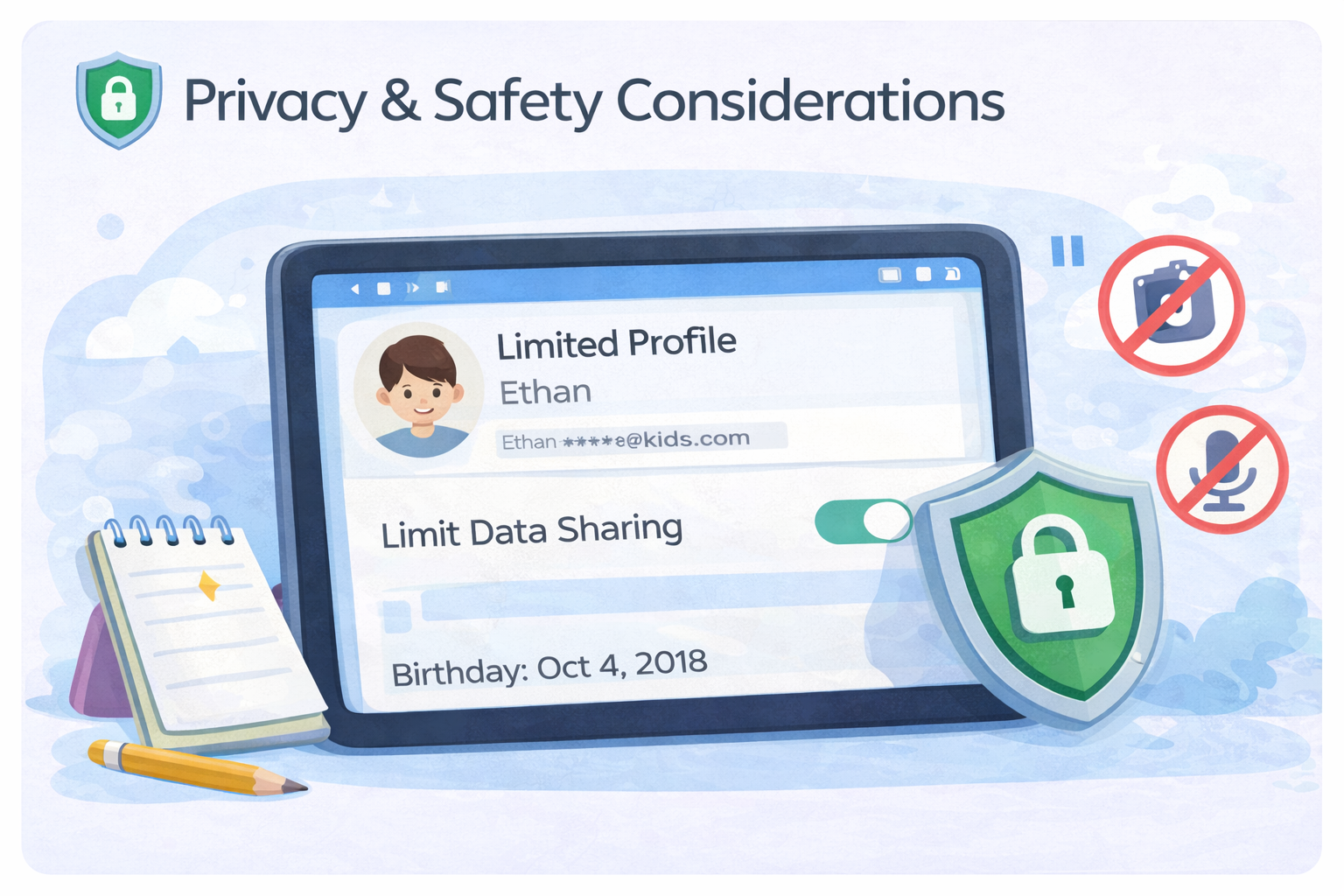
Privacy is often overlooked when choosing a kids tablet. Parents should understand how data is collected, stored, and shared — especially for younger children.
- Limit account data sharing
- Disable unnecessary permissions
- Use child-specific profiles
Child profiles with restricted data
Adult profiles used by kids
Final Verdict
Strong parental controls are more important than hardware specs when choosing a kids tablet. The best setups combine screen time limits, content filtering, and privacy protection. Parents should review and customize these settings regularly as their child grows.